Verify Used E-Ink Tablets Before Buying for PDF Newspapers
You've found what looks like a great deal on a used e-ink tablet — maybe an Onyx Boox Tab Ultra, a Kobo Elipsa, or even a Remarkable 2 — and you're picturing yourself reading full-page newspaper PDFs on a glare-free screen over morning coffee.
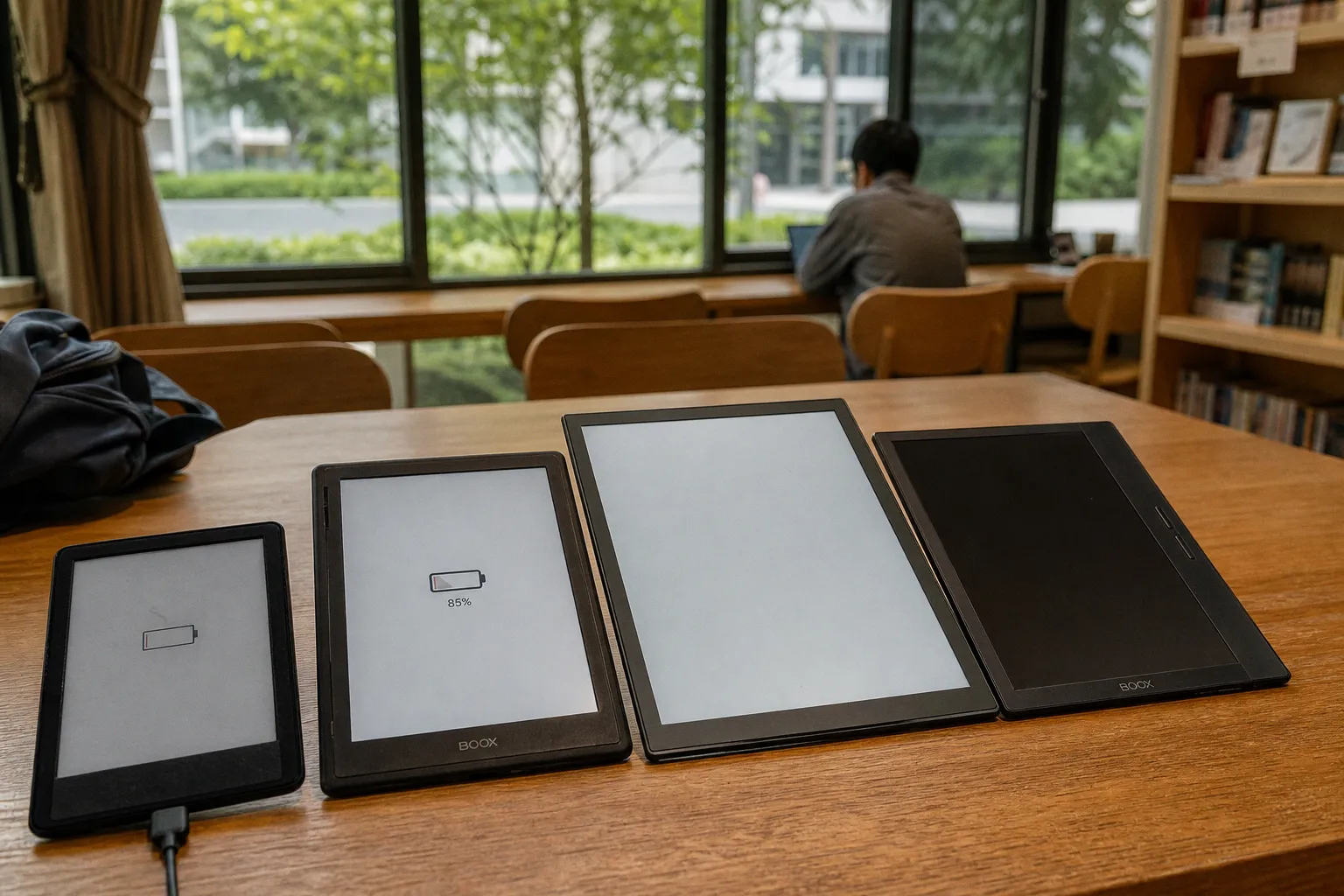
Second-Hand E-Ink Tablet Inspection: Avoiding Common Hardware Pitfalls
E-ink devices age differently than laptops or phones. Screens develop ghost images. Batteries quietly lose capacity. Previous owners leave cloud accounts locked in. And none of these problems show up in a seller's glossy product photos. The good news is that a thorough pre-purchase inspection doesn't require any technical expertise — just a systematic approach and about twenty minutes of your time. This guide walks you through every critical check, from screen integrity to account locks, so you walk away with a device that performs like it should.
---
Screen Integrity: Identifying Ghosting and Dead Pixels
The display is the single most expensive component of any e-ink tablet, and it's also the most vulnerable to long-term wear. Unlike LCD or OLED screens, e-ink panels use microcapsules filled with charged pigment particles. Over thousands of page turns, those particles can get "stuck," leaving faint afterimages of previous content — a phenomenon called ghosting. Dead pixels, meanwhile, show up as tiny black or white dots that refuse to change state.
Here's the thing: both problems are easy to miss if you only glance at a screen displaying a typical book page. You need to push the display into conditions that expose flaws.
The two-image test is your best friend:
1. Ask the seller (or do it yourself if you have physical access) to open a full-screen solid white image — a blank white page works fine. Look carefully across every inch of the screen. Dead pixels will appear as small, persistent black dots that don't refresh when you swipe to a new page. Pay special attention to the edges and corners, where manufacturing defects tend to cluster.
2. Next, display a full-screen solid black image. Now dead pixels show up as bright white specks against the dark background. This is also where subtle ghosting becomes visible — you might see faint outlines of previous content bleeding through the black fill.
3. After the black screen, switch back to a standard text page. If residual images from the black test linger after a full page refresh (most e-ink devices have a "full refresh" option in their settings), the screen is experiencing moderate-to-severe ghosting that will only worsen over time.
What's acceptable and what's a dealbreaker?
A single dead pixel near the edge of the screen is cosmetic — annoying but functional. Two or three clustered near the center of the reading area will disrupt your ability to follow newspaper columns comfortably. Persistent ghosting that doesn't clear after a manual full refresh signals aging e-ink film that cannot be repaired. Walk away from that one.
A used e-ink tablet with permanent ghosting is like a newspaper with smudged ink on every page — technically readable, but you'll regret the purchase within a week.
Also check for pressure marks — lighter or darker splotches that appear when the screen's front light layer has been damaged, usually from being stored under heavy objects. These are most visible at lower brightness settings.
---
Battery Stress Testing for Older E-Ink Hardware
E-ink displays are famously power-efficient — that's one of their core selling points. But the lithium-polymer batteries inside these devices degrade over time, just like any rechargeable cell. A three-year-old tablet that claims "weeks of battery life" might actually give you three days of moderate use if the battery has been through heavy charge cycles.
You can't easily check the exact cycle count on most e-ink devices (manufacturers rarely expose this data in settings menus), so you need a practical stress test instead.
The 30-minute battery assessment:
Charge the device to 100% before starting. Then turn on Wi-Fi, set the front light to maximum brightness, and begin actively reading — ideally a PDF with images, since page rendering draws more power than plain text. After exactly 30 minutes, check the battery percentage.
- Losing 5% or less: The battery is in solid shape. This is what you'd expect from a well-maintained device.
- Losing 5–10%: Acceptable for a used device, especially a larger-screen model (10.3" or above) that draws more power during full-page rendering.
- Losing more than 10–15%: The battery is significantly degraded. You're looking at a device that will need frequent charging and will eventually require a battery replacement — if the manufacturer even offers one.
Why this matters specifically for newspaper readers: PDF newspaper editions are image-heavy and often require Wi-Fi to download. If your tablet dies mid-edition on a regular basis, it defeats the purpose of having a dedicated reading device in the first place.
One more thing about batteries: Swelling. Press gently on the back casing of the device. If it feels slightly raised or "puffy" near the center, the battery has begun to swell — a safety concern, not just a performance issue. Replace or recycle the device immediately.
---
Navigating Account Locks and Software Restrictions
This is the problem that catches the most buyers off guard, and it's the one that's hardest to fix after the sale.
Most modern e-ink tablets are tied to cloud ecosystems. Kindle devices register to Amazon accounts. Kobo devices link to Rakuten Kobo accounts. Onyx Boox tablets running Android tie to Google accounts and Boox's own cloud sync service. If the previous owner didn't properly deregister the device before selling it, you could end up with a tablet that's effectively locked out of its own ecosystem — you can't register it under your account, you can't sync purchases, and in some cases you can't even perform a factory reset without the original credentials.
Before buying, confirm these steps have been completed:
- Amazon Kindle: The seller should have gone to Amazon → Manage Your Content and Devices → Devices, selected the tablet, and clicked "Deregister." Ask for a screenshot of the devices page showing the tablet is no longer listed.
- Kobo: The seller should have performed a factory reset from the device settings while signed in to their Kobo account (this cleanly severs the link). Then they should verify on kobo.com that the device no longer appears under "My Devices."
- Onyx Boox / Android-based e-ink: These require a Google account removal before factory reset. The seller should go to Settings → Accounts, remove the Google account, then perform a full factory reset. If they only did a factory reset without removing the account first, Google's Factory Reset Protection (FRP) may still block you from setting up the device.
What if the seller says "just do a factory reset"?
A factory reset alone does not guarantee the device is unlocked. Factory Reset Protection on Android-based devices, and Amazon's device registration system, can persist through resets. Always verify the deregistration was done at the account level — not just on the device itself.
A "factory reset" is not the same as "account deregistered" — and the difference can turn your bargain tablet into an expensive paperweight.
If you're buying through a marketplace with buyer protection (like eBay or Swappa), document everything. Ask the seller to confirm in writing — even a simple message — that the device has been fully deregistered from all accounts. If it arrives locked, you'll have a clear case for a return.
---
Physical Port Inspection and Charging Reliability
It sounds almost too simple, but a damaged charging port is one of the most common failure points in used e-ink hardware — and one of the most overlooked during in-person inspections.
Many e-ink tablets from the 2018–2022 era used micro-USB ports, which are less durable than the USB-C ports found on newer models. Micro-USB connectors are prone to loosening after repeated insertions, and the port itself can develop intermittent connections that make charging unreliable.
What to check:
- Visual inspection: Use a flashlight (your phone's will do) to look inside the charging port. You're checking for bent pins, lint buildup, corrosion, or any discoloration that suggests liquid damage.
- Wiggle test: Plug in the charging cable and gently move it side to side and up and down. The connection should remain stable. If the cable wobbles excessively or the charging indicator flickers on and off, the port has wear damage.
- Cable fit: Try the seller's cable and your own. Sometimes a specific cable fits better than another, which is normal — but if no cable seats firmly, the port itself is the problem.
- Charging speed: If the device charges but takes noticeably longer than the manufacturer's original specification (usually listed in the user manual or on the product page), the port or internal charging circuit may be degraded.
A practical note on USB-C vs. micro-USB for newspaper readers: If you're choosing between two similar-priced used models and one has USB-C, favor it — not just for durability, but for charging convenience. You're more likely to have a USB-C cable on hand in 2024, and the connector is simply more robust for daily plugging and unplugging.
---
Evaluating Screen Size and PPI for Newspaper Layouts
Not every e-ink tablet is equally suited for reading newspaper PDFs, and this is where many buyers make a costly mistake: they assume any e-reader will handle PDFs comfortably. The reality is more nuanced.
Screen size matters — a lot — for newspaper PDFs.
Standard newspaper PDFs are designed for print dimensions (roughly A4 or tabloid size). On a small e-reader like a 6-inch Kindle Paperwhite, a full newspaper page renders as a tiny, unreadable thumbnail. You end up zooming, panning, and constantly adjusting — which destroys the reading experience.
Here's a quick sizing reference:
| Screen Size | PDF Newspaper Experience | Best For |
|---|---|---|
| 6" (standard e-reader) | Nearly unreadable for full-page PDFs; requires constant zooming | EPUB books, simple documents |
| 7.8" (mid-size) | Marginal; workable with reflow-able PDFs but cramped for broadsheet layouts | Casual PDF reading, small-format publications |
| 10.3" | Comfortable for most newspaper formats with minimal zooming | Daily newspaper PDFs, A4 documents |
| 13.3" | Full-page viewing at native size — the gold standard for newspaper reading | Professional document review, full broadsheet newspapers |
For serious newspaper reading, 10.3 inches is the practical minimum, and 13.3 inches is the sweet spot if you can find a used device in that range (the Onyx Boox Max Lumi, Fujitsu Quaderno, or the discontinued Sony DPT series are worth considering).
PPI (pixels per inch) is the other half of the equation. A standard of 300 PPI is what you want for crisp, legible text — especially in newspaper PDFs where fine print and dense columns are the norm. Some older or budget e-ink tablets drop to 200–227 PPI, which makes text look noticeably fuzzy at close reading distances.
PDF rendering capability is the final factor. Some e-ink devices only support static PDF viewing — what you see is what you get, no resizing or reflowing. Others (particularly Android-based Onyx Boox devices) offer PDF reflow, which extracts text and reformats it to fit the screen. For newspaper PDFs with complex multi-column layouts, reflow can be hit-or-miss — sometimes it garbles the column order. A tablet with good native PDF rendering at the right screen size will serve you better than reflow on a smaller screen.
---
Making the Right Purchase: A Checklist Summary
Let's bring this together into a practical order of operations. When you're standing in front of a seller — or even just evaluating photos and descriptions online — work through these steps:
1. Confirm the model's screen size and PPI. For PDF newspapers, you need 10.3" minimum and 300 PPI. If the listing doesn't specify, look up the exact model number.
2. Request or perform the two-image screen test. Solid white, then solid black. Check for dead pixels, pressure marks, and persistent ghosting.
3. Run the 30-minute battery stress test if you have physical access. Wi-Fi on, brightness max, PDF open. More than 15% drain signals a worn battery.
4. Verify account deregistration. Ask for proof that the device has been removed from the seller's Amazon, Kobo, Google, or Boox account — not just factory reset.
5. Inspect the charging port visually and with a wiggle test. Loose connections or visible damage mean future headaches.
6. Check software compatibility. If you need specific newspaper apps (like PressReader, Libby, or a regional ePaper app), confirm the device's operating system supports them. Kindle's proprietary OS won't run Android apps; Onyx Boox's Android will.
If you're managing your budget carefully — balancing the cost of a used device against subscription fees for digital newspaper access — it's worth noting that a reliable e-ink tablet pays for itself quickly compared to print subscriptions or reading on a phone. And if you're also keeping an eye on your broader financial tools and subscriptions, resources on digital banking and subscription management can help you track recurring costs across all your services, not just your reading habit.
The bottom line: A well-chosen used e-ink tablet with a 10.3-inch or larger screen, a healthy battery, a clean account status, and an intact charging port will give you years of comfortable, eye-friendly newspaper reading — often at a third of the price of buying new. The key is inspecting systematically before you buy, not hoping for the best after. Twenty minutes of careful checking now saves you from the frustration of a device that looked perfect in photos but falls apart in daily use.