Compare PDF Preflight Tools for E-Paper Publishing
You've converted your print edition into a digital replica, uploaded it to your e-paper platform, and everything looks fine on your laptop.
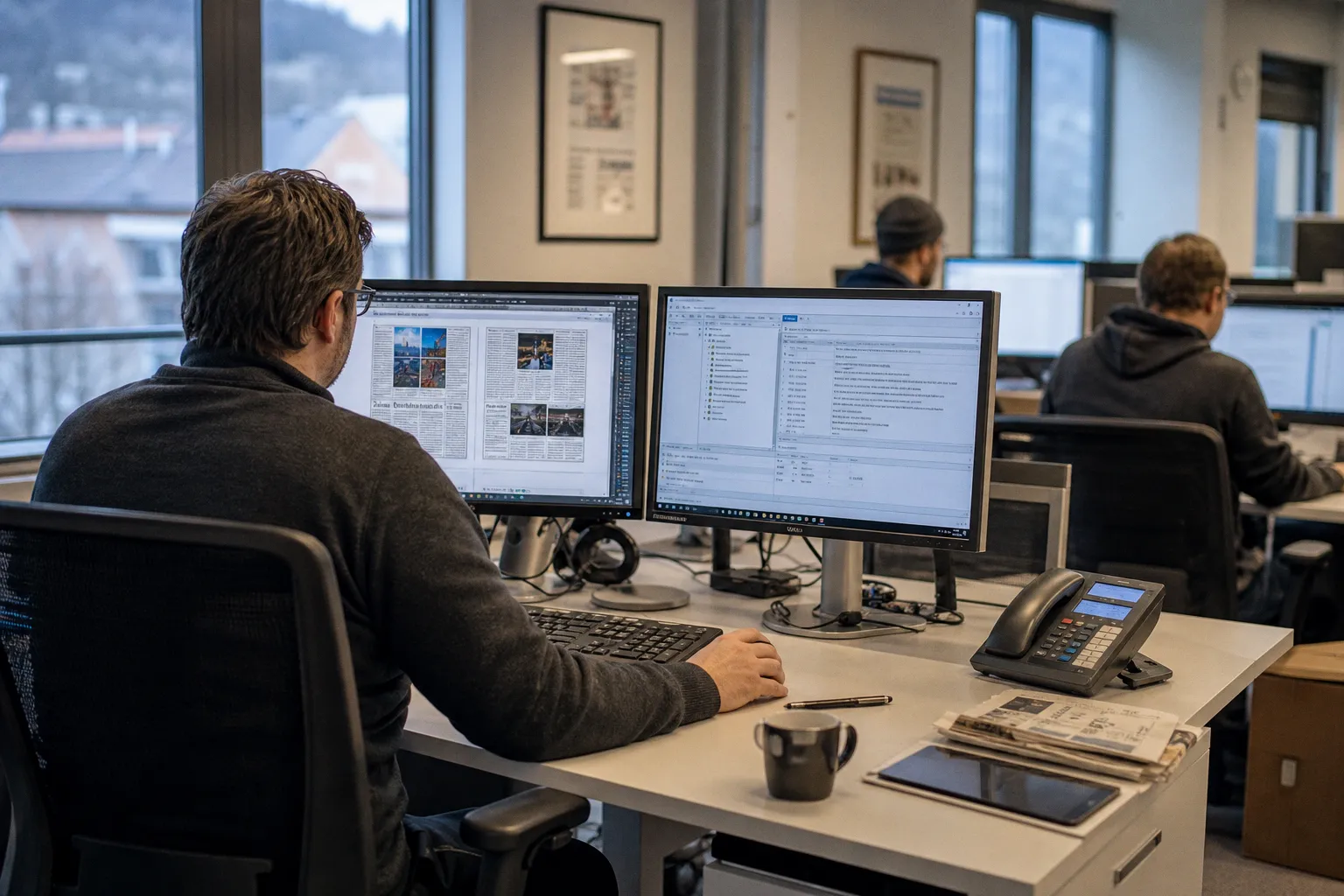
The Hidden Cost of Skipping PDF Preflight in E-Paper Publishing
The good news is that the tools to catch these problems before distribution are mature, well-documented, and built around internationally recognized standards. The challenge is choosing the right one for your specific workflow, volume, and technical comfort level. This guide walks you through the three dominant PDF preflight solutions — Adobe Acrobat Pro, Enfocus PitStop Pro, and Callas pdfToolbox — and helps you figure out which one actually fits how your publication operates.
Why PDF/X Standards Matter More Than You Think
Every serious e-paper publisher eventually runs into the PDF/X family of standards, whether they realize it or not. PDF/X-1a, PDF/X-3, and PDF/X-4 are ISO-standardized subsets of PDF designed to guarantee that a file will render consistently across devices and output systems. They enforce rules about font embedding, color space declarations, and the removal of ambiguous elements like JavaScript or external references — exactly the kinds of things that cause unpredictable behavior in digital replicas.
For e-paper workflows, PDF/X-4 (governed by ISO 15929:2020) is the most relevant modern standard. It supports transparency, ICC-based color management, and embedded fonts — all critical for a digital edition that might be viewed on anything from a Retina tablet to a budget Android phone. PDF/X-1a, by contrast, flattens everything to CMYK and is more suited to traditional print, while PDF/X-3 allows RGB but was largely superseded by X-4's more flexible framework.
Here's why this matters for you as a publisher: your e-paper distribution platform — whether it's a proprietary CMS or a third-party replica service — almost certainly assumes PDF/X compliance. When a file deviates from that assumption, the platform's rendering engine makes guesses. Sometimes those guesses work. Often they don't. Preflighting against a PDF/X profile is how you stop relying on guesswork.
Preflight isn't about being a perfectionist — it's about not leaving your digital edition's quality to the rendering engine's best guess.
Manual Inspection vs. Automated Remediation: Two Workflow Philosophies
Before comparing specific tools, you need to understand the fundamental split in how preflight software works: manual inspection versus automated remediation. This isn't a minor distinction — it shapes your entire production workflow, your staffing needs, and how quickly you can ship a daily edition.
Manual inspection means the tool flags issues and presents them to a human operator, who decides what to fix and how. Adobe Acrobat Pro's built-in Preflight tool is the classic example. You run a profile, review the report, and open each flagged item. This approach gives you maximum control, but it's time-intensive and scales poorly. If you're publishing a single weekly supplement, it's perfectly viable. If you're pushing out daily regional editions across multiple time zones, it's a bottleneck.
Automated remediation means the tool doesn't just find problems — it fixes them according to rules you've defined. Enfocus PitStop and Callas pdfToolbox both operate this way. You configure a preflight profile that says, for example, "convert all RGB images to CMYK using this ICC profile, embed all missing fonts from this directory, and flatten transparency above this complexity threshold." The tool runs those rules, applies the fixes, and outputs a compliant file — often without anyone touching a button.
The tradeoff is straightforward:
| Factor | Manual Inspection | Automated Remediation |
|---|---|---|
| Control over each fix | Full editorial judgment | Rule-based, predictable |
| Speed per file | Slow (minutes per page) | Fast (seconds per file) |
| Scaling for volume | Requires more staff | Scales with server capacity |
| Upfront setup time | Minimal | Significant (profile building) |
| Error type | Missed issues from fatigue | False positives, over-correction |
Most established e-paper publishers end up using a hybrid: automated preflight for the bulk of the daily output, with manual spot-checking on high-value pages like the front section and advertising spreads. The question is which tool lets you build that hybrid most efficiently.
Adobe Acrobat Pro: The Industry Baseline for Standardized Quality Control
If you've ever needed to check a PDF for printing or digital distribution, you've probably encountered Adobe Acrobat Pro's Preflight tool — even if you didn't know its name. It ships with every copy of Acrobat Pro and has been the default reference implementation for PDF/X compliance checking for over two decades.
Acrobat's Preflight works through a library of built-in profiles organized by standard. You select a profile (say, "PDF/X-4 compliance"), click Analyze, and receive a structured report listing every violation, warning, and informational note. Each item links directly to the offending element in the document, so you can inspect it visually. For a digital newspaper publisher, the most useful checks include:
- Font embedding verification — confirms that every font used in the document is fully embedded or subset-embedded, eliminating the fallback rendering that plagues so many e-paper replicas.
- Color space auditing — flags any RGB images or objects in a file declared as CMYK (or vice versa), which is a primary cause of color shifts in digital replicas.
- Image resolution scanning — identifies any raster image below your target DPI threshold. For e-paper replicas, the practical minimum is 150 DPI for standard viewing at native zoom; 300 DPI is preferable if your platform supports pinch-to-zoom.
- Transparency and layer checks — alerts you to flattened transparency groups and hidden layers that might render unexpectedly on non-Adobe viewers.
Where Acrobat falls short is volume. It processes one file at a time, the fixes are largely manual (you correct issues one by one in the document), and there's no built-in way to chain preflight into an automated publishing pipeline. For a small-circulation weekly or a publisher just starting to build a digital edition, Acrobat Pro is an affordable, low-learning-curve starting point. For anything at scale, you'll outgrow it quickly.
One practical tip: Acrobat Pro's Preflight tool supports custom profiles. If your e-paper platform has specific requirements — say, a maximum file size, a particular ICC profile for screen viewing, or a prohibition on OPI (Open Prepress Interface) comments — you can build a profile that checks exactly those conditions and reuse it across every edition. This alone can eliminate a surprising number of recurring errors.
Scaling Production: Enfocus PitStop Pro and Callas pdfToolbox
When your publication hits the point where manually inspecting every PDF becomes a production bottleneck, it's time to look at tools designed for automation. The two dominant options are Enfocus PitStop Pro and Callas pdfToolbox, and while they overlap significantly in capability, they serve somewhat different workflows.
Enfocus PitStop Pro
PitStop is a plugin for Adobe Acrobat that adds automated preflight and correction directly inside the Acrobat interface. Its strength lies in its balance: you get the familiar Acrobat visual environment with automation layered on top. You can configure a preflight profile once, apply it to a batch of files, and PitStop will either report issues or fix them — depending on how you've set up the rules.
For e-paper publishers, PitStop's killer features include:
- Action Lists — sequential, user-defined workflows that can re-order pages, convert color spaces, resize images, add bleed, and flatten transparency in a single automated pass. This is where PitStop genuinely shines for digital replica production.
- Global Change — lets you make document-wide edits (replace a font, adjust ink coverage, modify metadata) across every page simultaneously. If your prepress team discovers at 11 PM that the wrong ICC profile was applied to an entire edition, Global Change can fix it in seconds.
- Preflight report customization — you can configure reports to show only errors (not warnings), tailor them for different output targets (print vs. digital), and export them as XML for integration with your editorial management system.
PitStop is licensed per seat, and the pricing scales with feature tiers. For most mid-size publishers running a daily e-paper, a handful of PitStop licenses on the production team's machines is more cost-effective than trying to automate Acrobat through scripting.
Callas pdfToolbox
Callas pdfToolbox operates on a different model: while it has a desktop application, its real power lies in server-side automation. The pdfToolbox Server can watch a folder, process incoming PDFs against predefined profiles, apply fixes, and output compliant files — all without a human touching the keyboard. For publishers running high-volume, time-sensitive workflows (multiple regional editions, multiple daily deadlines), this is the architecture that actually scales.
Key capabilities for e-paper production:
- Hotfolder processing — drop a PDF into a watched directory, and pdfToolbox picks it up, runs preflight, applies corrections, and moves the clean file to your distribution pipeline. No manual intervention required.
- Complex preflight profiles — pdfToolbox supports nested conditions, exception handling, and profile inheritance. You can define a base profile for all digital editions and layer regional variations (different ICC profiles for different e-paper platforms, different resolution thresholds for different device targets).
- Server-side scripting and API integration — pdfToolbox Server exposes an API, so you can trigger preflight programmatically from your newspaper CMS or editorial workflow system. This makes it the tool of choice for publishers who want preflight baked into their content management pipeline rather than bolted on as a manual step.
The tradeoff with pdfToolbox is complexity. Building and maintaining server-side profiles requires technical expertise — either in-house or through Callas's professional services. The licensing model is also server-based, which means the cost structure favors organizations with consistent, high-volume output.
Here's a simplified comparison of all three tools for e-paper publishers:
| Feature | Adobe Acrobat Pro | Enfocus PitStop Pro | Callas pdfToolbox |
|---|---|---|---|
| Best for | Low volume, spot-checking | Mid-volume, team workflows | High-volume, automated pipelines |
| Interface | Desktop (standalone) | Desktop (Acrobat plugin) | Desktop + Server |
| Automation level | Manual | Semi-automated | Fully automated |
| Batch processing | No | Yes (Acrobat batch sequences) | Yes (server hotfolders + API) |
| Custom profiles | Yes | Yes (advanced) | Yes (most flexible) |
| Auto-correction | No | Yes (Action Lists) | Yes (Fixups) |
| Learning curve | Low | Moderate | High |
| Typical cost model | Per-seat subscription | Per-seat license | Server license (volume-based) |
Critical Technical Parameters for E-Paper File Validation
Regardless of which tool you choose, the preflight checks you configure should address the specific failure modes of print-to-digital PDF conversion. Generic preflight profiles built for commercial printing won't catch everything relevant to e-paper, and they'll flag plenty of things that don't matter. Here's what to prioritize.
Font embedding — full, not partial. Every font used in the PDF must be fully embedded or subset-embedded. Partial embedding is the number-one cause of text rendering failures in e-paper viewers, because the viewer has to guess at missing glyph data. Your preflight profile should flag any font that is referenced but not embedded.
Image resolution — set a meaningful floor. The standard preflight check for 300 DPI is oriented toward print. For e-paper, you need to think about how readers actually consume the content: on screens, often at less than 100% zoom. A practical floor of 150 DPI for photographs and 300 DPI for logos and line art strikes the right balance between file size and visual fidelity. Below 150 DPI, images start to look noticeably soft on modern tablets.
Color space consistency. Digital replicas should be delivered in a screen-friendly color space. If your preflight profile accepts CMYK content (common in print-origin files), it should also enforce an ICC profile for conversion to sRGB where your e-paper platform requires it. Mismatched color spaces — an RGB image sitting in a CMYK-declared container, or vice versa — produce the kind of unpredictable color shifts that readers notice immediately.
OPI comment removal. OPI (Open Prepress Interface) comments are legacy print workflow artifacts that reference high-resolution images stored on a prepress server. They have no purpose in e-paper delivery and can cause rendering errors or excessive file sizes if the e-paper platform attempts to resolve them. Your preflight profile should strip them.
Transparency flattening. While PDF/X-4 supports native transparency, not all e-paper rendering engines handle it well. If your platform's viewer is based on older rendering technology, you may need to flatten transparency as part of your preflight workflow. This is a case where testing with your specific platform is essential — there's no universal rule.
File size constraints. Many e-paper platforms impose upload limits. A preflight profile that checks total file size and per-page size can prevent failed uploads and broken editions. If your platform has a per-issue cap (common with mobile-first readers), this check alone can save you from a midnight fire drill.
The best preflight profile is the one that catches your publication's recurring mistakes — not a generic checklist copied from a print workflow.
Making the Call: Which Tool Fits Your Publication
The right preflight tool depends on where your publication sits on the automation spectrum.
If you're a small or regional publisher just beginning to build a digital edition — perhaps one daily PDF uploaded to a single platform — Adobe Acrobat Pro is your starting point. The investment is minimal, the learning curve is shallow, and you'll catch the most damaging errors (unembedded fonts, wrong color spaces, low-resolution images) on every file. You'll spend ten to fifteen minutes per edition on preflight, which is entirely manageable at low volume.
If your production team handles multiple editions per day, works across different regional templates, or needs to enforce consistent quality standards across a group of publications, Enfocus PitStop Pro is the logical step up. Its Action Lists let your team build repeatable correction workflows, and its batch processing eliminates the per-file bottleneck. The key is investing the upfront time to build profiles that match your specific e-paper platform's requirements — not just generic PDF/X compliance.
If you're a large-circulation publisher with a dedicated production infrastructure, multiple e-paper distribution channels, and a newspaper CMS that needs to orchestrate the entire preflight step programmatically, Callas pdfToolbox Server is purpose-built for your situation. The server-side architecture, API integration, and profile flexibility make it the only tool that can truly disappear into an automated pipeline — which is exactly what high-volume digital publishing demands.
Whichever path you take, the principle is the same: preflight is not a luxury step bolted onto the end of production. It's the quality gate that determines whether your readers see a faithful digital replica or a broken approximation of your print edition. Build it into your workflow once, configure it properly for your platform, and it will quietly prevent the most common — and most visible — failures in e-paper publishing.