Automate PDF Newspaper Delivery to Kindle Using Calibre
Automated newspaper delivery to Kindle fails most often at the transport layer, not at the reader layer.
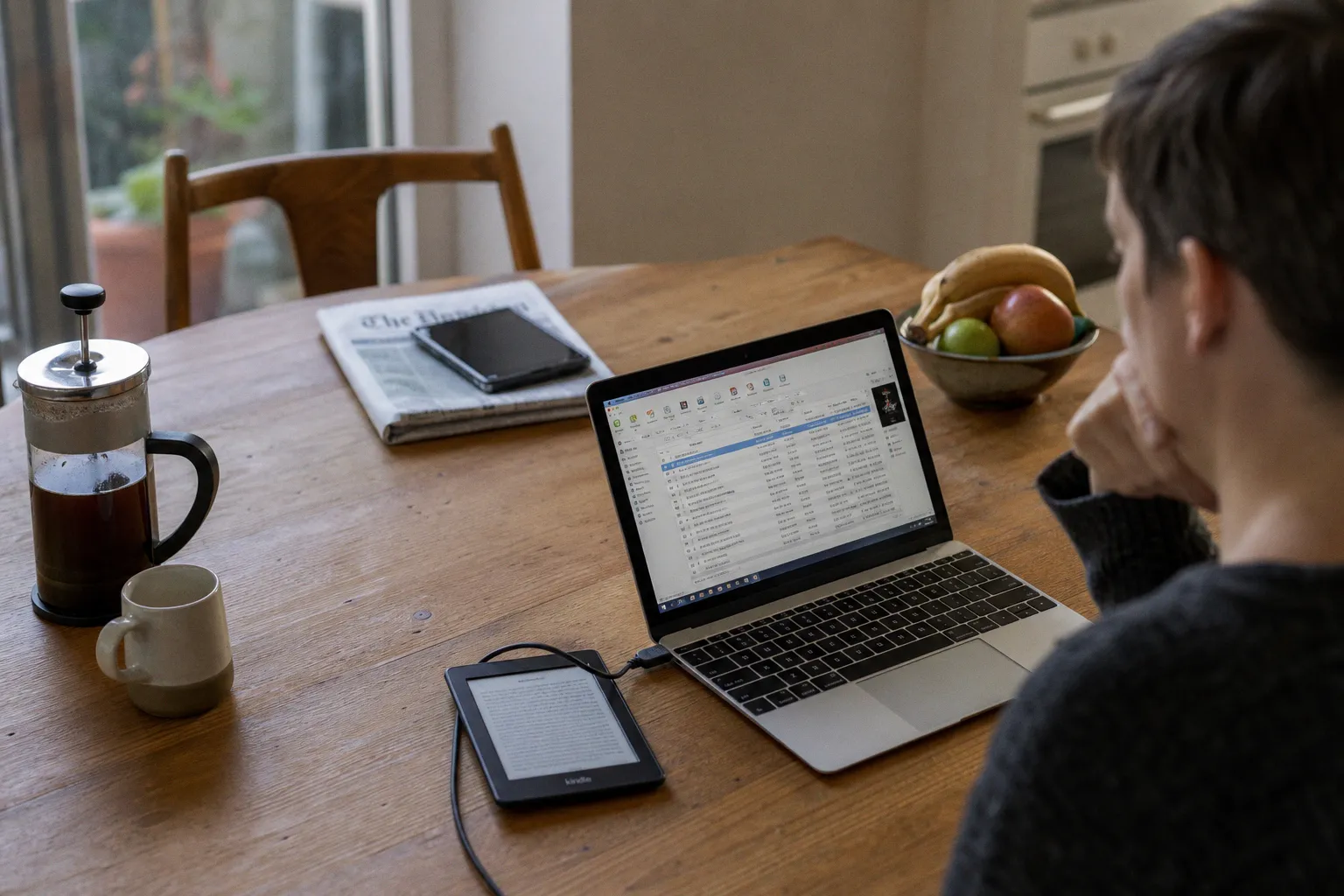
For readers searching for how to check automate PDF newspaper delivery to Kindle using Calibre, the useful answer is measurable: confirm that Calibre can fetch the publication, verify the generated file format, test email delivery to the Kindle address, then inspect whether Amazon accepts the sender. A Kindle is a passive endpoint in this setup. Calibre does the acquisition and packaging. Amazon’s Send-to-Kindle system does the ingestion. The Kindle only displays the result.
What Calibre Actually Automates
Calibre’s relevant feature is Fetch news. It can download web-based news sources, RSS feeds, and publication recipes, then convert the output into an e-book file suitable for Kindle delivery. The software includes more than 2,000 preconfigured news sources, but that number should not be confused with guaranteed newspaper PDF compatibility.
A preconfigured recipe is not the same as a PDF replica edition. Many recipes generate a structured e-book from article feeds. That output may be superior on a 6-inch Kindle because it reflows text, preserves section order, and avoids horizontal panning. A PDF e-paper edition behaves differently. It keeps page geometry. That can be useful for archiving and page-faithful reading, but it is also less forgiving on small E Ink panels.
The operational distinction is simple:
| Source type | Calibre behavior | Kindle result | Failure risk |
|---|---|---|---|
| RSS or article feed | Fetches articles and builds an e-book | Reflowable reading, good font scaling | Low, if feed is public |
| Calibre news recipe | Executes predefined or custom retrieval logic | Usually EPUB/AZW3-style structure | Medium, depends on site changes |
| Direct PDF edition | Requires accessible PDF URL or custom recipe handling | Fixed-layout pages | High, if login, cookies, or scripts are required |
| Paywalled browser-only edition | Not reliably fetched by default | Usually no automated output | Very high |
Calibre does not bypass paywalls. It does not inherit an active browser session unless a custom workflow has been built to provide credentials or cookies in a controlled way. A newspaper that hides the PDF behind JavaScript, short-lived tokens, or device-bound authentication will not become a reliable Kindle feed merely because a schedule exists in Calibre.
Automation is only stable when every link in the chain is deterministic: the source URL, the recipe, the conversion format, the sender address, and Amazon’s approval rule.
Configure Calibre for Automated News Retrieval
The first control point is not the Kindle. It is Calibre’s local fetch job.
Open Calibre and use Fetch news. From there, select a built-in publication or add a custom source. Built-in sources are listed by language, region, and publication type. For newspaper work, the key variable is not the publication name. It is the input structure behind the recipe.
A stable news source usually has these properties:
- The source exposes RSS, Atom, or predictable article URLs.
- The page content loads without an interactive browser session.
- Images are available without hotlink blocking.
- The site does not rotate article paths or PDF file names behind expiring tokens.
- The recipe has been maintained recently enough to match the current site layout.
Calibre’s scheduler can run news downloads at set intervals, including hourly, daily, or weekly. Daily is the appropriate interval for most newspaper editions. Hourly retrieval usually adds noise unless the source is a rolling wire service or a live news feed. Weekly retrieval is more appropriate for magazines, Sunday editions, or regional weeklies.
For a newspaper workflow, the schedule should match the publication cadence. A daily print replica released at 05:00 local time should not be fetched at 04:30. The result will be either the previous edition or an incomplete feed. A practical margin is to schedule the job 30 to 90 minutes after the expected release window.
The Format Question: EPUB, AZW3, MOBI, or PDF
Kindle delivery has changed. MOBI should be treated as legacy, not as the preferred target. Amazon’s Send-to-Kindle service supports EPUB, and that reduced the need to force older MOBI output. Calibre can still produce multiple formats, including AZW3, MOBI, PDF, and EPUB, but the correct choice depends on the source.
For automated newspaper reading, the format decision is technical:
| Output format | Best use | Weakness |
|---|---|---|
| EPUB | Send-to-Kindle delivery for reflowable news | Some complex layouts may be simplified |
| AZW3 | Local USB transfer or Kindle-native formatting | Email delivery support depends on Amazon handling, not just Calibre |
| Page-faithful replica editions | Poor reflow; small screens require zooming | |
| MOBI | Legacy Kindle workflows | Obsolete for most new Send-to-Kindle setups |
If the publication is fetched as articles, EPUB is usually the cleanest target. If the publication is already a PDF edition and page fidelity matters, keep PDF only if the target Kindle screen is large enough. A 6-inch Kindle at typical 300 DPI has excellent text sharpness but limited page area. A broadsheet PDF compressed onto that surface is mechanically sharp and practically uncomfortable. On a Kindle Scribe-class panel, fixed-layout newspaper PDFs are more viable.
Set Up the Send-to-Kindle Email Pipeline
Calibre’s email delivery is configured under Preferences > Sharing books by email. This is where the Kindle address and outbound sender are defined.
Every Kindle device or Kindle app has a Send-to-Kindle email address. It is usually visible in the Amazon account under device content settings. Calibre must know this destination address. It also needs a sender account capable of sending mail through SMTP.
The basic pipeline is:
1. Calibre fetches the news source according to its schedule.
2. Calibre converts the retrieved content into the selected output format.
3. Calibre sends the resulting file as an attachment to the Kindle email address.
4. Amazon checks whether the sender address is approved.
5. Amazon processes the file and adds it to the Kindle library or target device.
6. The Kindle downloads it during the next sync over Wi-Fi.
The most common misconfiguration is using one email address in Calibre and approving a different one in Amazon. Amazon validates the sender. It does not care that the file was produced by Calibre. If the message originates from `[email protected]`, that exact address must be on the approved list.
Use a dedicated sender address if possible. It isolates newspaper automation from personal email and makes failures easier to identify. If the mail provider blocks automated SMTP traffic, Calibre will fail before Amazon ever sees the file. That failure appears in Calibre logs, not on the Kindle.
For readers managing subscriptions, payment alerts, and account security around digital publishing, basic financial hygiene matters as much as software hygiene; a concise reference point is digital banking and financial security, especially when newspaper accounts and payment methods are spread across regions.
Approve the Sender in Amazon
Amazon requires the sender email to be added to the Approved Personal Document E-mail List. This is a spam-control boundary. It is also the step most likely to be missed because it sits outside Calibre.
The approval process should be treated as a validation gate:
- Identify the exact sender address configured in Calibre.
- Open the Amazon account settings for personal document delivery.
- Add that sender address to the approved list.
- Confirm that the Kindle destination email address is correct.
- Send a single test document before enabling schedules.
Do not skip the test. A scheduled job can run for days while every file is rejected upstream. The Kindle gives limited diagnostic feedback for this class of error. Calibre logs will show whether the email was sent. Amazon account behavior determines whether the file was accepted.
A useful test file is a small EPUB or PDF already present in Calibre. Send it manually to the Kindle address. If that works, test a fetched newspaper issue. This separates email transport from recipe behavior. If the manual file arrives but the newspaper does not, the problem is in retrieval or conversion. If neither arrives, the problem is in email configuration or Amazon approval.
A successful manual Send-to-Kindle test proves the pipe. It does not prove the newspaper recipe.
Schedule Downloads Without Creating Duplicates
Calibre’s Schedule news download menu allows recurring fetches. The scheduler is simple enough to operate, but newspaper timing introduces edge cases.
Set the schedule according to the publication’s release pattern, not the reader’s preferred reading time. Calibre needs the edition to exist before it can fetch it. If the paper posts the PDF at 06:00 and the Kindle syncs at 07:00, schedule Calibre around 06:20 or later. If the publication updates stories continuously, decide whether the morning snapshot is sufficient. Repeated fetches can create multiple near-identical documents.
A stable daily configuration looks like this:
1. Select the publication in Fetch news.
2. Choose Schedule for download.
3. Set frequency to Daily.
4. Set the run time after the expected publication window.
5. Define the preferred output format, usually EPUB for reflowed news or PDF for replica editions.
6. Enable automatic sending to the configured Kindle email address.
7. Run one manual fetch before relying on the schedule.
For weekly newspapers, use a weekly schedule on the release day. For regional editions that appear late or irregularly, a daily schedule may be less efficient but more reliable. The trade-off is duplicate handling. Calibre can keep multiple dated issues, which is useful for archival workflows but untidy for casual reading.
Retention and Library Hygiene
Automated newspaper delivery produces many small records. A daily edition creates roughly 365 items per year per title. If multiple regional PDFs are collected, the library can become noisy within a quarter.
Use consistent metadata. Calibre’s news downloads generally include publication names and dates, but custom recipes should produce predictable titles. A date in ISO order is preferred for sorting: `2026-03-18 — Newspaper Name`. Human-readable dates sort poorly when mixed across months and regions.
Kindle-side retention also matters. Personal documents can accumulate in the library. If the goal is reading rather than archiving, delete old issues periodically from the Kindle and, where appropriate, from the Amazon content library. If the goal is archiving, keep the Calibre library as the source of record. It is more inspectable and easier to back up than a Kindle document list.
Conversion Settings That Affect Newspaper Readability
Newspaper content stresses e-book converters because it contains columns, captions, inline images, advertisements, section headers, and inconsistent web markup. The conversion result should be judged on structural fidelity, not on whether the file merely opens.
For reflowable editions, inspect these parameters after the first conversion:
- Section order. Front page, local, world, business, opinion, and sports should not collapse into a random feed order.
- Headline hierarchy. Headlines should render as navigable headings, not oversized body text.
- Image handling. Photos should not dominate the page width unless they are editorially central.
- Table preservation. Election results, market data, and sports tables may degrade during conversion.
- Character encoding. Regional newspapers often expose encoding faults in names, accents, and currency symbols.
- Article duplication. RSS feeds sometimes repeat the same wire story under multiple section tags.
For PDFs, the conversion question is different. Converting a newspaper PDF into reflowable EPUB can damage the reading order because multi-column layouts are difficult to reconstruct. If page fidelity is required, do not convert the PDF into a reflowable format. Send it as PDF and accept the navigation cost.
On E Ink, rendering latency is also relevant. Large PDFs with heavy images produce slower page turns and more visible partial refresh artifacts. Ghosting is not usually caused by the PDF itself; it is a display refresh behavior. But dense page images make residual artifacts more visible, especially when moving between full-page newspaper layouts.
The display stack matters:
| Kindle class | Newspaper PDF suitability | Better format |
|---|---|---|
| 6-inch Kindle | Low for full-page PDFs; high for reflowed articles | EPUB |
| 6.8-inch Paperwhite class | Marginal for replica PDFs; good for article feeds | EPUB |
| Large-format Kindle | Good for PDFs if file size is controlled | PDF or EPUB |
| Kindle app on tablet | Strong for PDFs; less E Ink benefit |
This is not subjective preference. It is geometry. A page designed for print loses usable body text size when reduced to a small E Ink panel. DPI preserves edge sharpness, not physical letter height.
PDF-Only Newspapers and Recipe Limits
The difficult cases are PDF-only e-paper editions. Many regional publishers offer a replica edition behind an account login. Some expose a stable PDF file. Others use a viewer that streams page images, requires cookies, or generates temporary links. Calibre’s standard Fetch news system is not designed to defeat those controls.
A custom Calibre recipe can handle some authenticated or structured sources, but this requires Python knowledge and maintenance. Site redesigns can break selectors. Login flows can change. Captchas, device fingerprints, and short-lived tokens are outside the scope of routine Calibre automation.
A realistic classification is useful:
| Publisher access model | Automation expectation |
|---|---|
| Public RSS feed | High reliability |
| Public article pages | High to medium reliability |
| Public static PDF link | Medium to high reliability |
| Subscriber PDF with stable authenticated URL | Medium, custom work likely |
| Browser-only e-paper viewer | Low |
| App-only edition with DRM | Not suitable for Calibre automation |
The instruction “automate PDF newspaper delivery to Kindle using Calibre” is therefore conditional. It is straightforward when the PDF is reachable by a stable URL or when the newspaper has a usable recipe. It is not straightforward when access depends on an interactive browser or protected app environment.
Calibre cannot guarantee specific recipes for every regional newspaper. Some will need custom scripts. Some will not be practical. The correct test is not whether the publication exists in Calibre’s list. The correct test is whether a current issue can be fetched, converted or preserved, emailed, accepted by Amazon, and opened on the Kindle with usable layout.
Verification Workflow: How to Check the Automation End to End
The phrase how to check automate PDF newspaper delivery to Kindle using Calibre is awkward, but the diagnostic sequence is precise. Test one layer at a time. Do not enable a schedule first and debug later.
Use this order:
1. Fetch manually. Run the selected news source once from Calibre. Confirm that an item appears in the library.
2. Open locally. View the generated file in Calibre’s viewer or an external PDF reader. Confirm content completeness.
3. Inspect format. Verify whether the file is EPUB, PDF, AZW3, or another output. Do not assume the recipe produced what was intended.
4. Send manually. Use Calibre’s email function to send the file to the Kindle address.
5. Check Amazon approval. Confirm that the sender email is on the Approved Personal Document E-mail List.
6. Sync Kindle over Wi-Fi. Force a manual sync if the document does not appear promptly.
7. Read two pages and one section jump. Confirm not just arrival, but navigability.
8. Enable schedule. Only after manual fetch and manual send have succeeded.
9. Review the next automatic run. Check Calibre logs and Kindle arrival time after the first scheduled execution.
This procedure isolates faults. A broken recipe is not confused with blocked SMTP. An unapproved sender is not confused with a Kindle sync delay. A bad PDF layout is not confused with a delivery failure.
Typical Failure Signatures
When the system fails, the symptom usually points to the layer.
| Symptom | Probable cause | Corrective action |
|---|---|---|
| No file appears in Calibre | Recipe or source retrieval failed | Test source, update recipe, inspect login requirements |
| File appears but is empty | Site markup changed or feed is truncated | Use another source or modify recipe |
| File opens locally but not on Kindle | Unsupported or malformed output | Convert to EPUB or send original PDF |
| Email sends but Kindle never receives it | Sender not approved by Amazon | Add exact sender address to approved list |
| Kindle receives old edition | Schedule runs before publication release | Move schedule later |
| PDF arrives but is unreadable | Fixed-layout page too large for screen | Use reflowable recipe or larger device |
| Multiple copies arrive daily | Schedule frequency too high or source updates repeatedly | Reduce frequency and standardize title handling |
Logging should be used before settings are changed. Random adjustments create ambiguous results. In Calibre, the job details show whether the fetch and conversion stages completed. Mail-provider logs or error messages indicate SMTP rejection. Amazon’s approval list governs final acceptance.
Security and Account Boundaries
Automation should not require weakening account security. If a workflow depends on storing a primary newspaper password in a plain custom script, the risk should be acknowledged. If it depends on forwarding personal email through an untrusted SMTP provider, the design should be rejected.
Use narrow privileges where possible:
- A dedicated sender email for Calibre.
- App-specific passwords if the mail provider supports them.
- A separate newspaper account only when the publisher allows it.
- Local backups of Calibre recipes and configuration.
- No shared scripts from unknown sources without code inspection.
Custom recipes are executable code. Treat them as such. They can fetch URLs, parse content, and handle credentials if written to do so. That power is why Calibre is useful. It is also why recipes should not be installed blindly.
Verdict: The Stable Calibre-to-Kindle Newspaper Setup
A reliable Calibre newspaper workflow is built from verified components, not assumptions. The stable configuration is a public or recipe-compatible news source, scheduled after publication time, converted to EPUB for reflowable reading or preserved as PDF for large-screen use, then sent from a dedicated approved email address to the Kindle account.
Calibre’s Fetch news feature is strong for structured news and RSS-derived editions. It is less predictable for PDF-only e-paper systems hidden behind complex paywalls or app viewers. Amazon’s Send-to-Kindle path is workable, but only when the sender address is explicitly approved and the output format is accepted.
The final test is empirical: one manual fetch, one local open, one manual Send-to-Kindle delivery, one successful Kindle sync, then one scheduled run. If all five pass, the automation is operational. If any one fails, the failure belongs to that layer and should be corrected there.